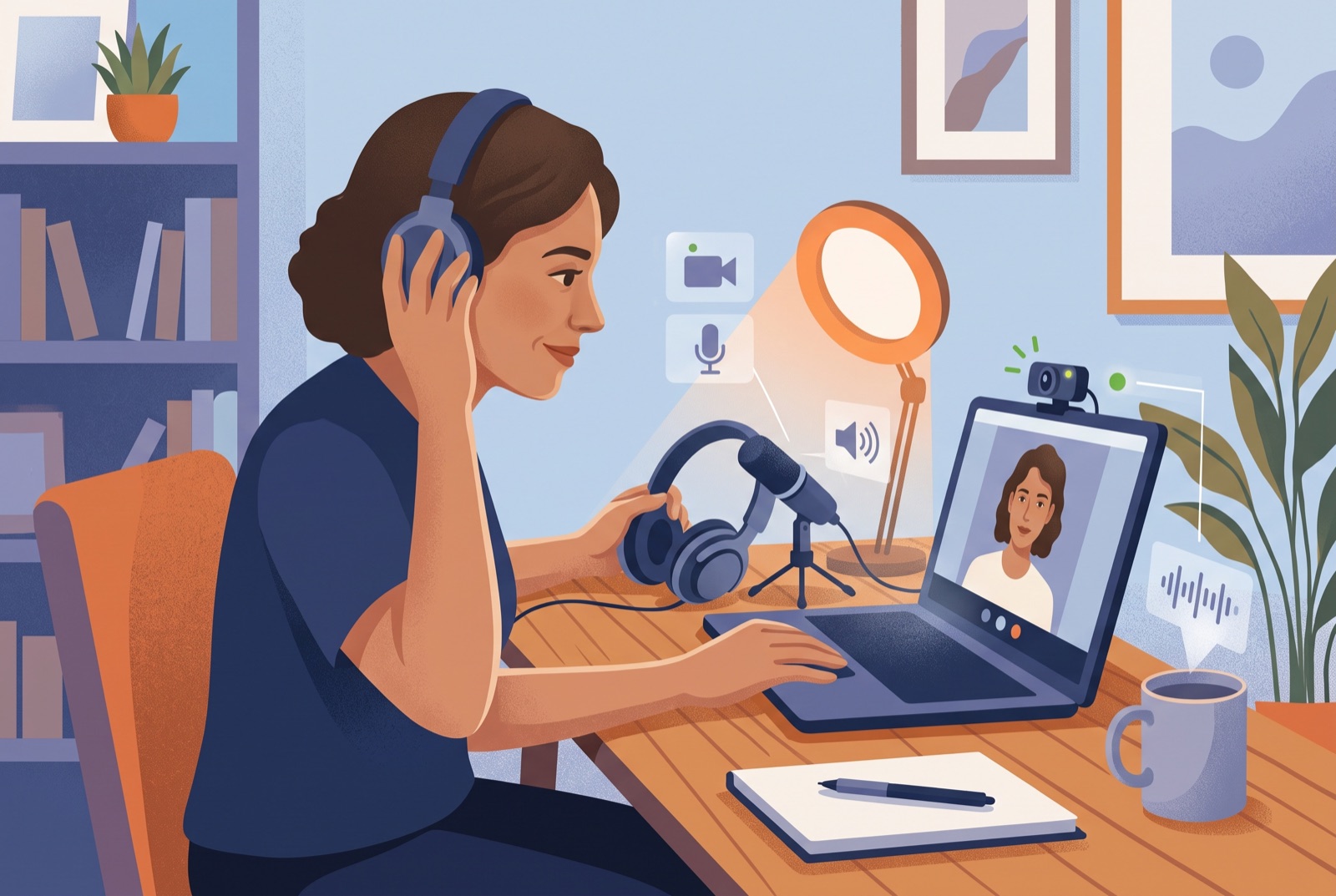
A browser video call can feel immediate, but several small steps happen between pressing a button and seeing another person. Understanding those steps makes permission prompts, local previews, and connection delays much less confusing.
The browser controls camera and microphone access
A website cannot use your camera or microphone until the browser grants permission. The prompt may appear near the address bar, and the choice can be remembered for later visits.
Allow access only on the site you intend to use. If you previously blocked a device, open the browser’s site settings and change the permission there rather than repeatedly refreshing the page.
The local preview is your final check
Before matching, confirm that the preview shows the correct camera and that your surroundings reveal only what you are comfortable sharing. Check the microphone selection if your computer has more than one input.
A working preview does not mean another person can already see you. It shows the local camera feed so you can prepare before joining the matching queue.
The matching queue looks for another available person
Random chat does not begin with a profile search or friend request. After you start, the service looks for another available user and creates a room when a match is ready.
Connection time can vary with availability, device setup, and network conditions. A brief wait is normal; repeated failures usually point to permissions, another app using the camera, or an unstable connection.
Room controls matter as much as the connection
Once connected, you should be able to end the conversation without asking the other person. Omegle.Land provides Stop, Next when available, and Report, together with text messaging inside the active video room.
Use those controls early when a conversation no longer feels useful or safe. Random matching works best when moving on is treated as a normal part of the format.